How to create a docker image and host it on Github Packages

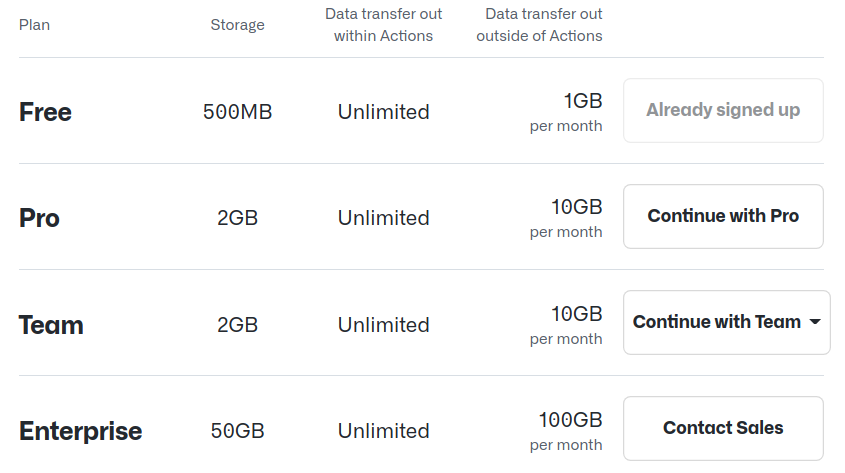
Github packages are relatively new compared to Docker Hub. It includes lots of services like NPM packages, Nuget packages, and so on. In this article, we are going to use the containers service. The pricing for docker image hosting is excellent compared to other providers. Bear in mind that this pricing concerns private repositories only, as the service is totally free for public repositories.
For starters, you can take any image you have from your archive and follow this tutorial. If you don't have any, you can use the snippet below, which says, "Hello world!" To host your image in Github packages, you have to tag it with the full path to your image in Github as follow
docker tag hello-world-alpine:latest ghcr.io/mohessaid/hello-world-alpine:latest
Of course, you have to build the image first, and also, you can name it directly with the Github full name if you find it appropriate.
docker build --no-cache -t hello-world-alpine .
The dot at the end refers to the current working directory which contains in our example the following Dockerfile
FROM alpine:3

CMD ["echo", "Hello World from Github and Hashnode!"]
After that, you have to push the image, but you have to log in with your Github account before you do so. Like you log into your docker hub account from the terminal, you do it with Github. The sole difference is in the password. With Github, you need to create a personal token with the privileges of writing to your packages and use it as a password.
- From your profile menu go to settings
- Go to Developer settings
- Go to Personal access tokens
- Generate a new token with the following permissions

- Set the expiration period and a name and hit Generate token.
You have one chance to copy your new token and use it to log in. As the Github documentation mentions it is a good practice to save the token in an environment variable and use it as follows to log in.
echo $PAT | docker login ghcr.io --username phanatic --password-stdin
If you don't know how to create this variable just use copy-paste the following command.
export PAT=you token here
Finally, push your image and enjoy using it inside your Github actions or share it with your friends or community.
docker push ghcr.io/mohessaid/hello-world-alpine:latest
Associate your image with a repository
You can associate your image with a repository using the label in your docker file or from Github. The label should have the following syntax.
LABEL org.opencontainers.image.source=https://github.com/mohessaid/hello-world-alpine
The source or the URL refers to your repository.